
• Home

ClinicSoftware.com Knowledge Base ClinicSoftware.com Knowledge Base

ClinicSoftware.com Knowledge Base

  • HOW IT WORKS
    • Software Features
    • Marketing Features
    • Online Booking
    • Paperless Features
    • Photo And Draw Features
    • Tracking Features
    • Sell Cycle Features
    • Fully Responsive Features
    • Business Reports Features
    • Automated Features
    • Reminders Features
    • Apps Features
    • Multi Location Features
    • Add-Ons
  • WHO IT’S FOR
  • MARKETING
  • MORE
    • Support
    • Find-Us
    • Migrate To ClinicSoftware
    • How We Provide Training
    • Partner With Us
    • Academy
    • Support Chat
    • Blog
    • Editions
    • ClinicSoftware.com TV
    • GDPR
    • ICD-10 Database
    • PCI-DSS Compliant
    • Cloud Hosting
    • Latest UK Shows
    • UK Press
  • Modern Edition
  • CLOSE / RETURN TO SOFTWARE
Home Knowledge Base 5. COURSES / SESSIONS 03. TRACK MINUTES

03. TRACK MINUTES

26th January 2017 Posted in: 5. COURSES / SESSIONS Hits: 505


From this page you can track each minutes based course progress, set remaining minutes and delete the course.
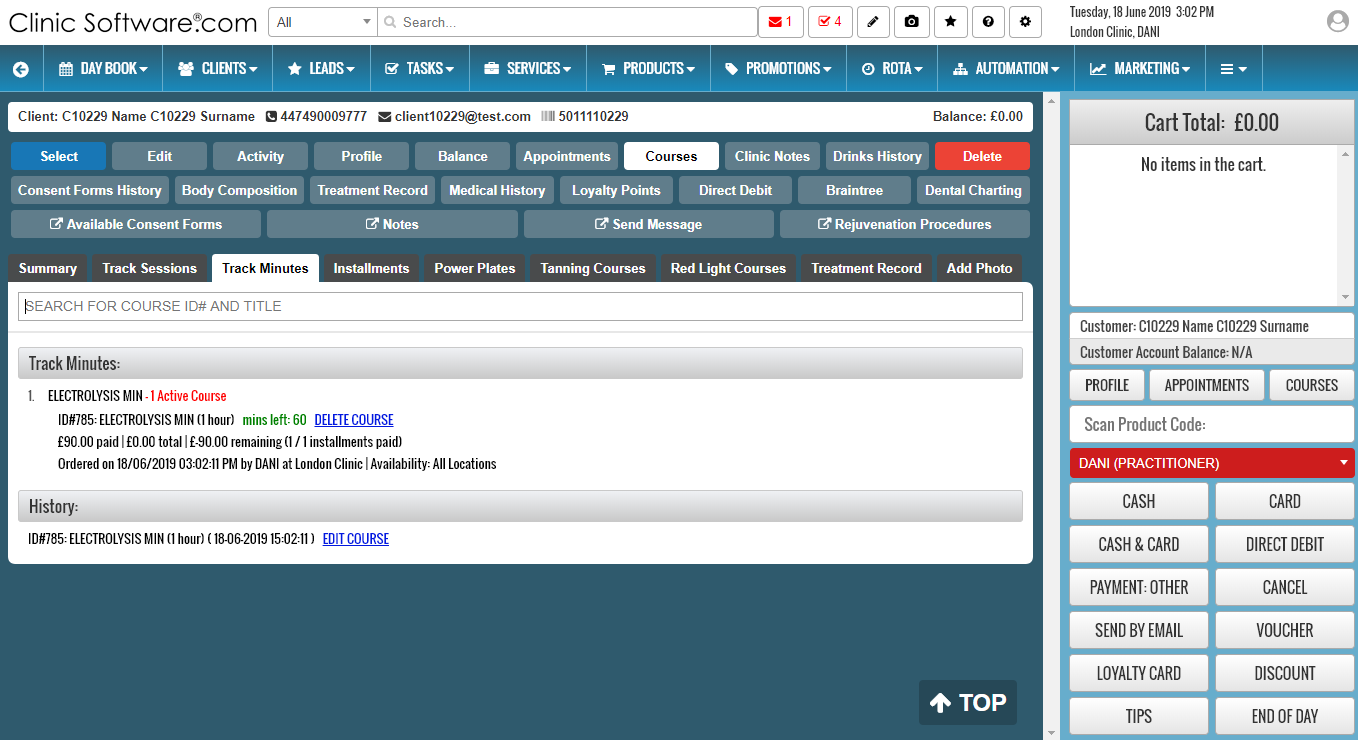
For minutes based courses, the minutes are deducted automatically when the course is booked (the system will ask you how many minutes do you wish to book from this course when adding an appointment from the Day Book).

The Track Minutes page is divided into 2 sections:

–           “Track Minutes” which will list all course directories and the active courses in them.
–           “History” which will list all of the courses minutes utilization and booked dates.


To modify the remaining minutes of a course, in the History section press “EDIT COURSE”.
You will be prompted to log in as a staff with manager rights.


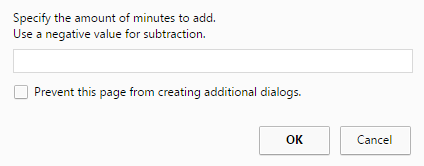
Enter the value that you wish to add or subtract from the course:

  • A positive value will add to the total minutes of the course (e.g. “5”)
  • A negative value will subtract from the total minutes of the course (e.g. “-5”)
© 2017 ClinicSoftware.com