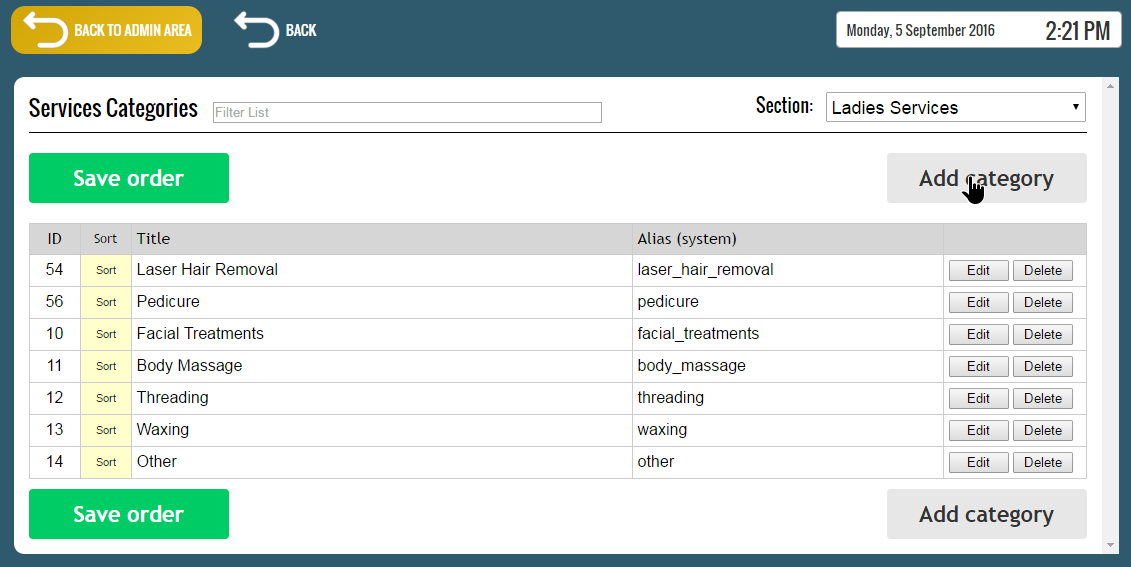
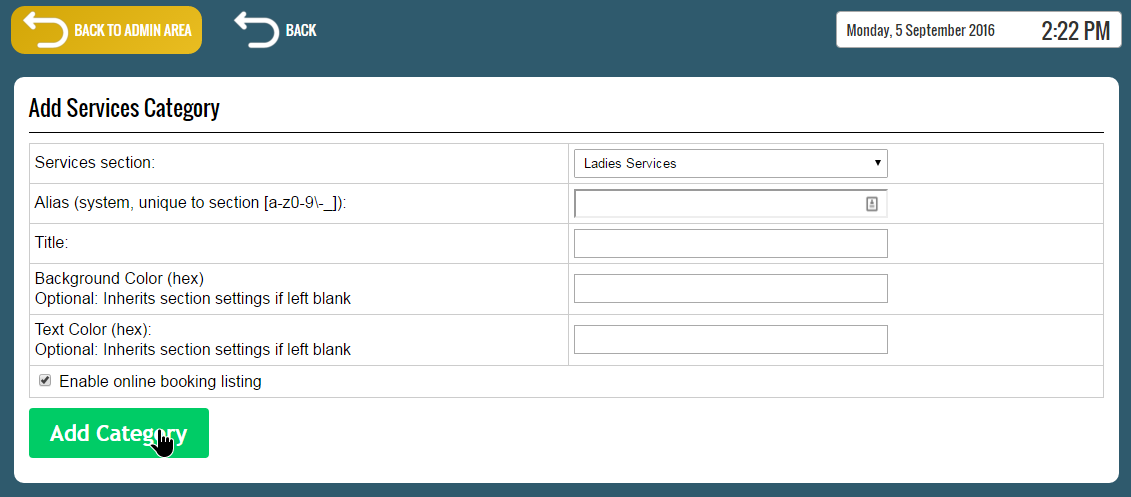
From this page you can manage the services categories in the system.
The services are organised into sections (main category) and categories (subcategory of the section).
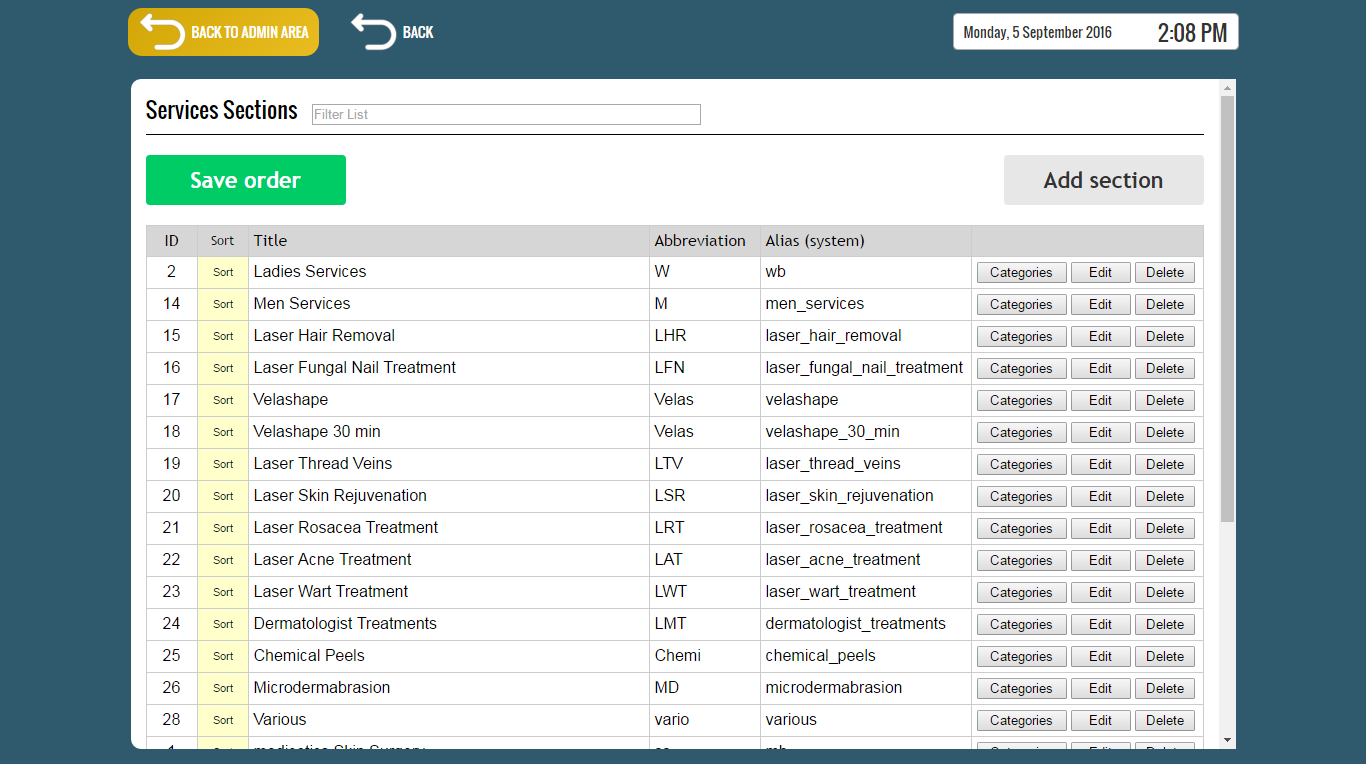
The main page (when accessing it from the Admin Area) displays the services sections (main categories).
To filter the list / search for a services section, use the “Filter List” field located in the top section of the page.

To filter the list / search for a section, use the “Filter List” field from the top section of the page.
Each item of the list can be rearranged to the desired display order by clicking on the “Sort” cell of the item and then positioning the item to the desired position while holding down the left mouse button.

After you have arranged the items in order, press the “Save Order” button to save the changes.

To edit or delete an existing section, use the “Edit” and “Delete” buttons of the section.

To add a new services section, press the “Add section” button from the top of the page.

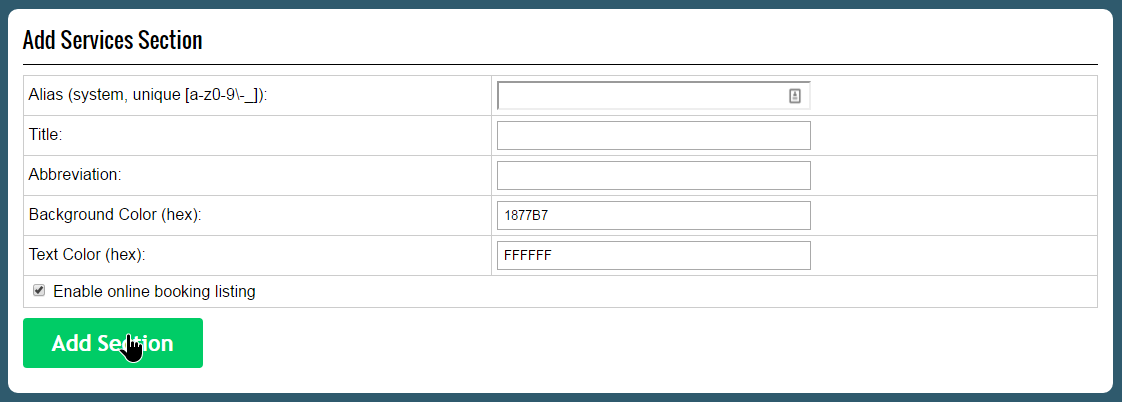
The alias field is used by the system for identification and must be unique.
It can only include numbers, letters and the “-“or “_” characters.
To show the section in the online booking website tick the “Enable online booking listing” checkbox.
To manage the section categories, press the “Categories” button of the section.

The categories are managed in the same manner as the sections (see above instructions).