
• Home

ClinicSoftware.com Knowledge Base ClinicSoftware.com Knowledge Base

ClinicSoftware.com Knowledge Base

  • HOW IT WORKS
    • Software Features
    • Marketing Features
    • Online Booking
    • Paperless Features
    • Photo And Draw Features
    • Tracking Features
    • Sell Cycle Features
    • Fully Responsive Features
    • Business Reports Features
    • Automated Features
    • Reminders Features
    • Apps Features
    • Multi Location Features
    • Add-Ons
  • WHO IT’S FOR
  • MARKETING
  • MORE
    • Support
    • Find-Us
    • Migrate To ClinicSoftware
    • How We Provide Training
    • Partner With Us
    • Academy
    • Support Chat
    • Blog
    • Editions
    • ClinicSoftware.com TV
    • GDPR
    • ICD-10 Database
    • PCI-DSS Compliant
    • Cloud Hosting
    • Latest UK Shows
    • UK Press
  • Modern Edition
  • CLOSE / RETURN TO SOFTWARE
Home Knowledge Base 9.6 MARKETING - EMAIL AND SMS TEXT SENDING SMS TEXTS

SENDING SMS TEXTS

26th March 2020 Posted in: 9.6 MARKETING - EMAIL AND SMS TEXT Hits: 271

To send a SMS text to your client you have to create a template first.

To create a SMS text template search in admin area “Marketing SMS”.

This will open the marketing SMS template page.
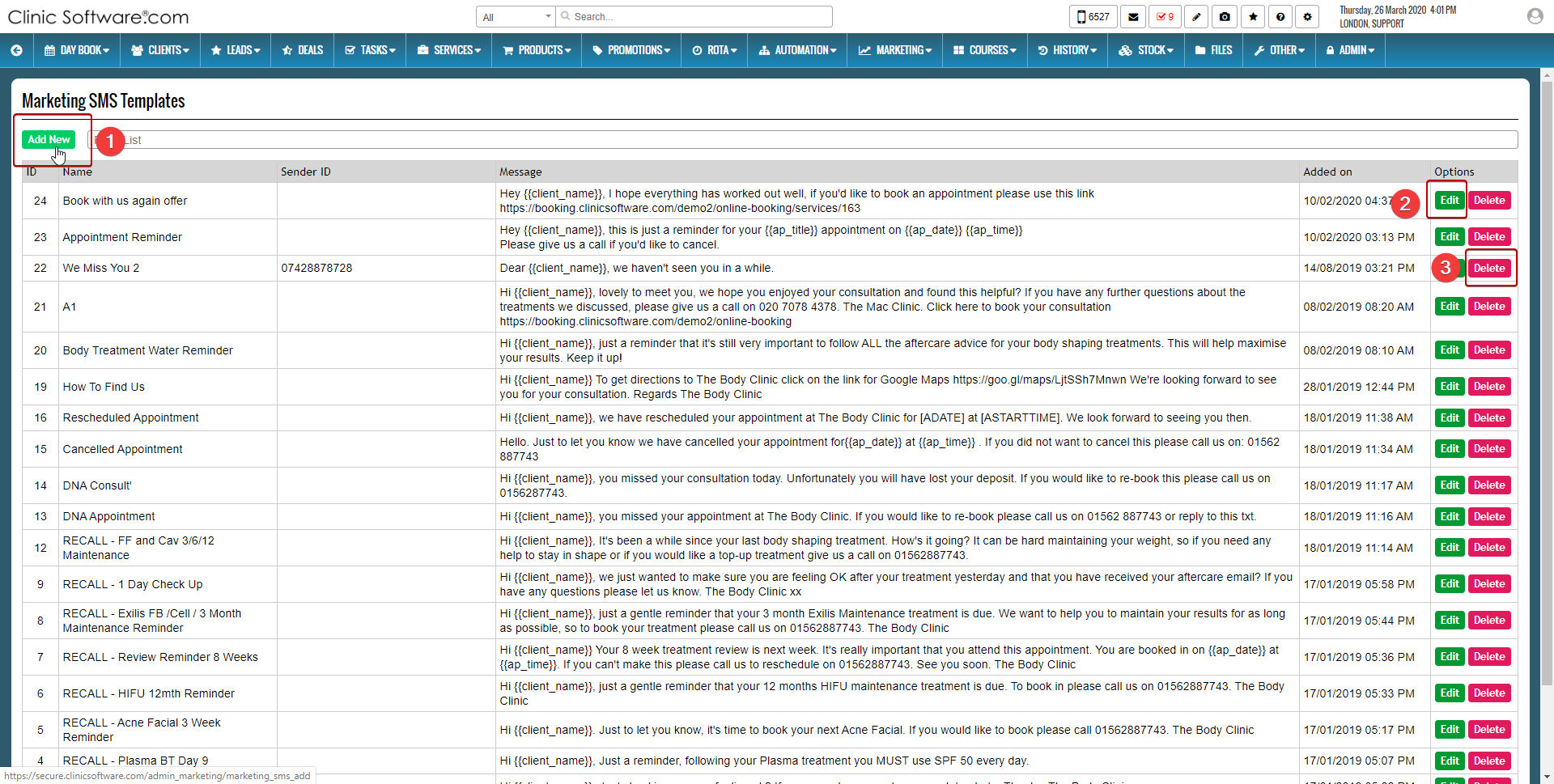
  1. Press the “Add new” button to add a new SMS template.
  2. Press the “Edit” button to edit an existing SMS template.
  3. Press the “Delete” button to delete  an existing SMS template.
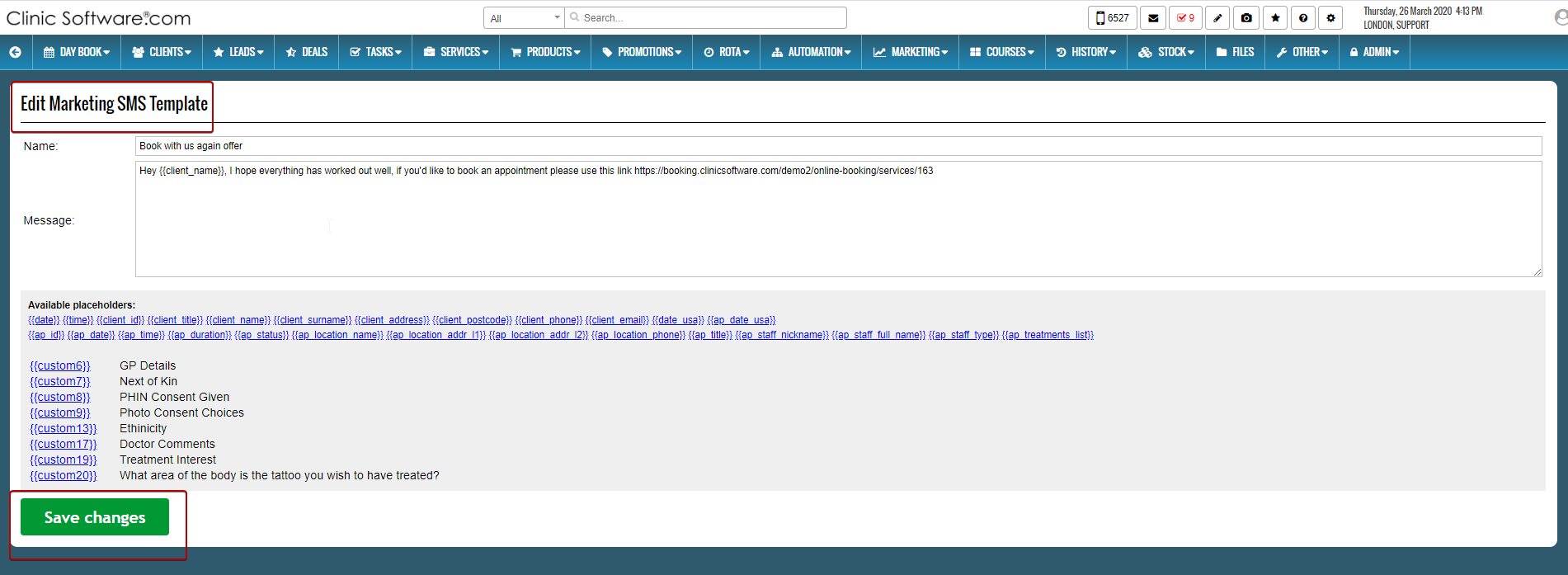


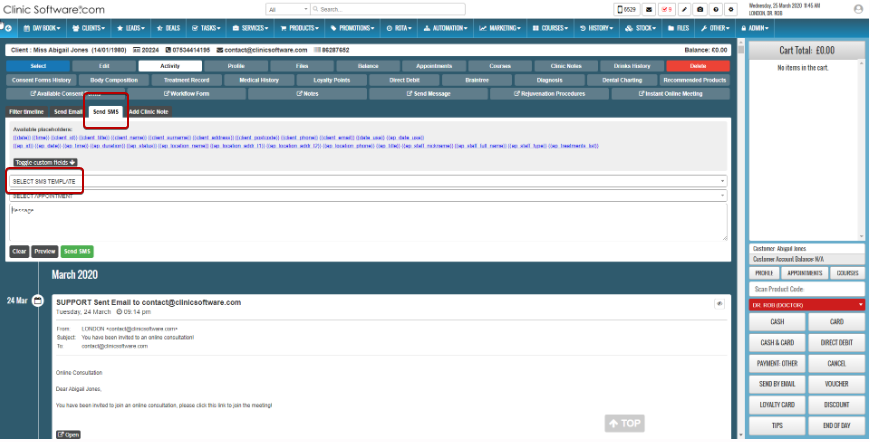
To send a SMS text to your client go to the client profile and press the “Activity” button.

To send a SMS text to your client press the “Send SMS” button and select the SMS template.
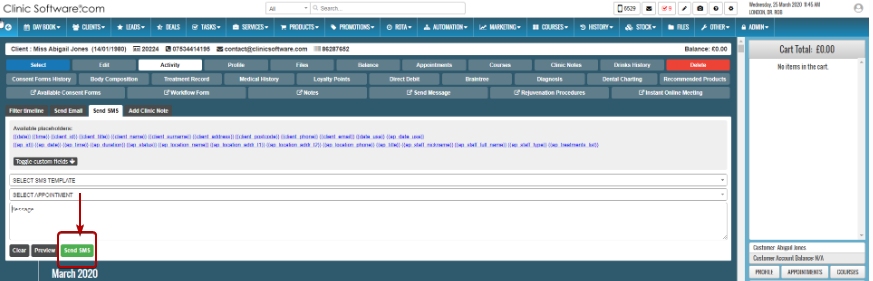
After this press the green “Send SMS” button to send the SMS.


© 2017 ClinicSoftware.com