
• Home

ClinicSoftware.com Knowledge Base ClinicSoftware.com Knowledge Base

ClinicSoftware.com Knowledge Base

  • HOW IT WORKS
    • Software Features
    • Marketing Features
    • Online Booking
    • Paperless Features
    • Photo And Draw Features
    • Tracking Features
    • Sell Cycle Features
    • Fully Responsive Features
    • Business Reports Features
    • Automated Features
    • Reminders Features
    • Apps Features
    • Multi Location Features
    • Add-Ons
  • WHO IT’S FOR
  • MARKETING
  • MORE
    • Support
    • Find-Us
    • Migrate To ClinicSoftware
    • How We Provide Training
    • Partner With Us
    • Academy
    • Support Chat
    • Blog
    • Editions
    • ClinicSoftware.com TV
    • GDPR
    • ICD-10 Database
    • PCI-DSS Compliant
    • Cloud Hosting
    • Latest UK Shows
    • UK Press
  • Modern Edition
  • CLOSE / RETURN TO SOFTWARE
Home Knowledge Base 4. DAY BOOK 15. MODIFYING THE APPOINTMENT TREATMENTS LIST

15. MODIFYING THE APPOINTMENT TREATMENTS LIST

27th January 2017 Posted in: 4. DAY BOOK Hits: 333

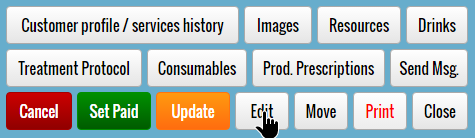
To modify an appointment, click on the “Edit” button from the “Appointment Details” window:
Each appointment type will have a different treatment list:
E.g. You can only modify services appointments by removing or adding new services.
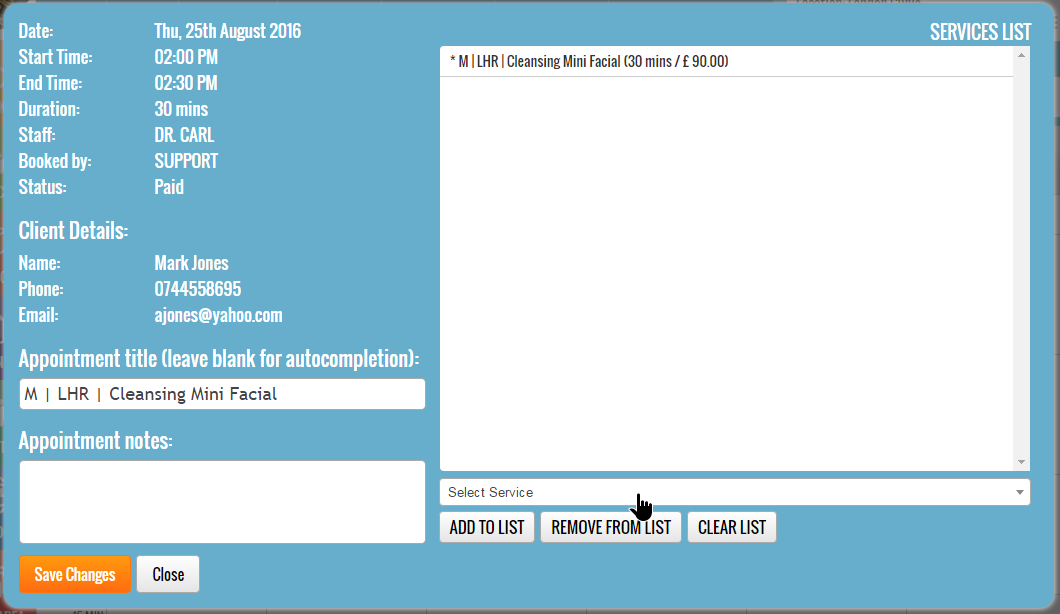
To remove a treatment from the treatments list, lick on the treatment and then press the “REMOVE FROM LIST” button.

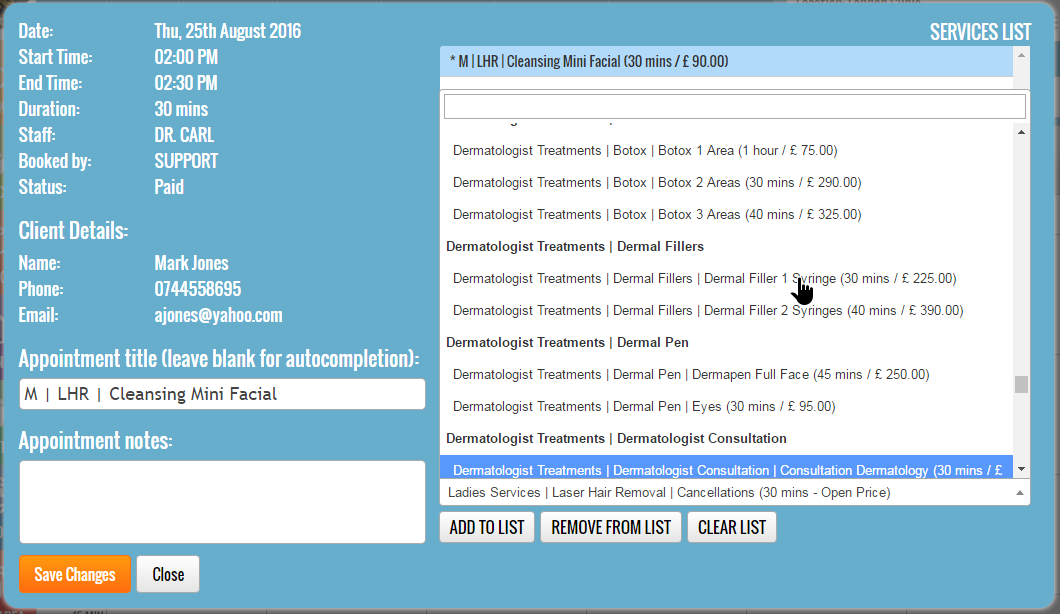
To add a new treatment to the list, click on the “Select Service/Course” drop box and then select the service/course. You can also search for the required treatments.

Services /courses already present in the appointment will be prefixed with “*” in the treatments list and the “Select service/course” drop box.
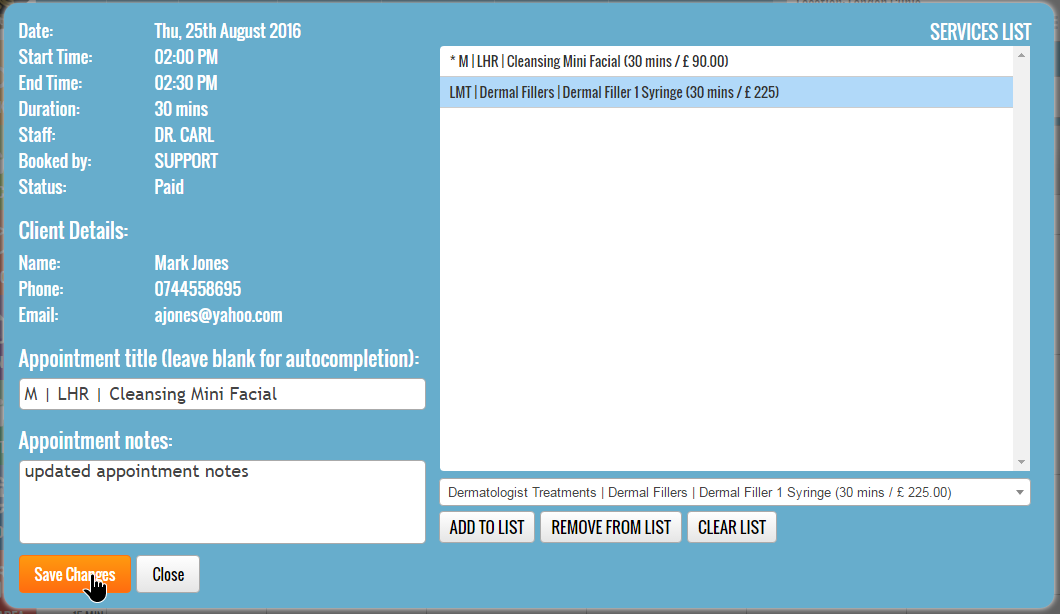
You can also edit the title and notes fields located on the left column of the window.
Press the “Save Changes” button to modify the appointment.
Important:
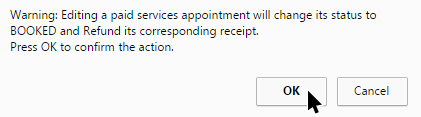
When you modify the treatments list of an appointment that has already been paid, the system will refund the receipt and change the appointment status back to “Booked” automatically.


© 2017 ClinicSoftware.com