
• Home

ClinicSoftware.com Knowledge Base ClinicSoftware.com Knowledge Base

ClinicSoftware.com Knowledge Base

  • HOW IT WORKS
    • Software Features
    • Marketing Features
    • Online Booking
    • Paperless Features
    • Photo And Draw Features
    • Tracking Features
    • Sell Cycle Features
    • Fully Responsive Features
    • Business Reports Features
    • Automated Features
    • Reminders Features
    • Apps Features
    • Multi Location Features
    • Add-Ons
  • WHO IT’S FOR
  • MARKETING
  • MORE
    • Support
    • Find-Us
    • Migrate To ClinicSoftware
    • How We Provide Training
    • Partner With Us
    • Academy
    • Support Chat
    • Blog
    • Editions
    • ClinicSoftware.com TV
    • GDPR
    • ICD-10 Database
    • PCI-DSS Compliant
    • Cloud Hosting
    • Latest UK Shows
    • UK Press
  • Modern Edition
  • CLOSE / RETURN TO SOFTWARE
Home Knowledge Base 9.3 ADMIN AREA 11. DISCOUNT CODES

11. DISCOUNT CODES

30th January 2017 Posted in: 9.3 ADMIN AREA Hits: 370

From this page you can add services with discount codes.
The system will prompt you to enter the discount code when adding the service in the cart.
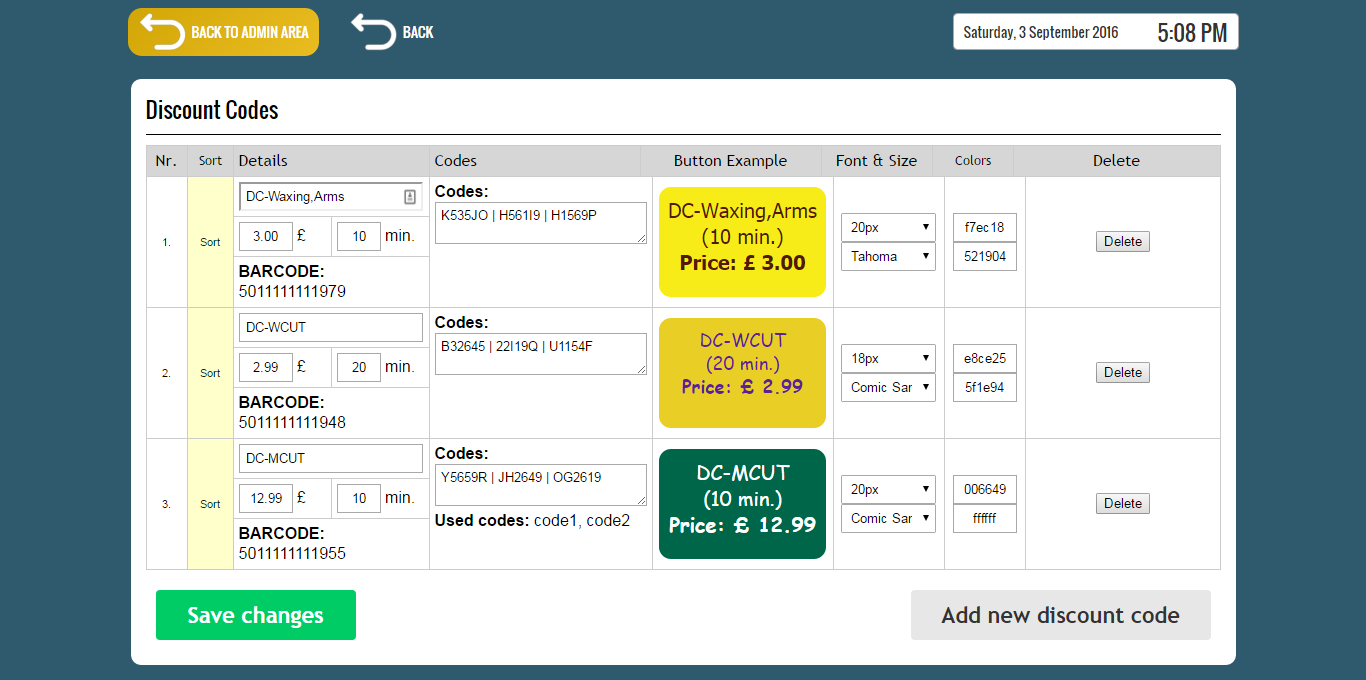
To add a new discount code, press the “Add new discount code” button from the bottom right section of the page.
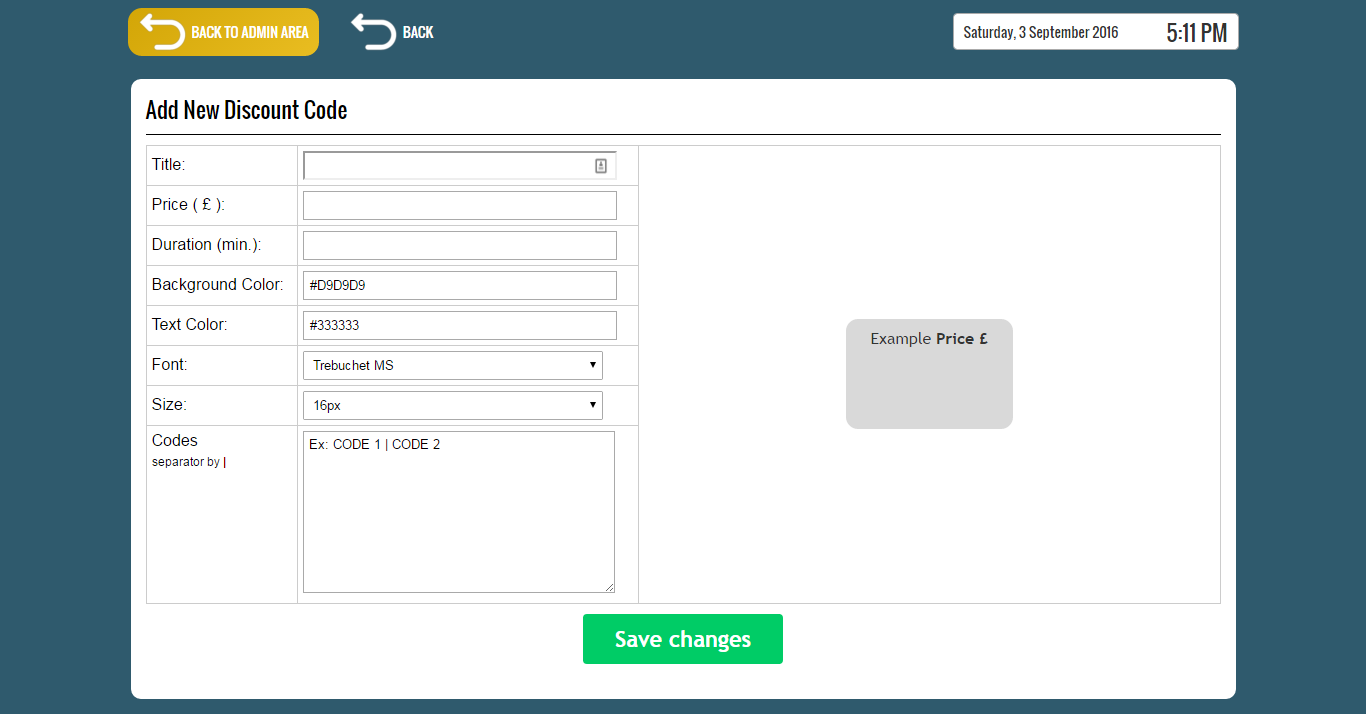
Specify the service title and discounted price and the discount codes inside the “Codes” text area and then press the “Save changes” button.

The codes are separated by “ | “, example: “CODE1 | CODE2”.

Entries are modified from the services discount codes list page directly.
Enter the new title, price, duration and/or modify the discount codes list and then press the “Save changes” button located in the bottom-left section of the page.
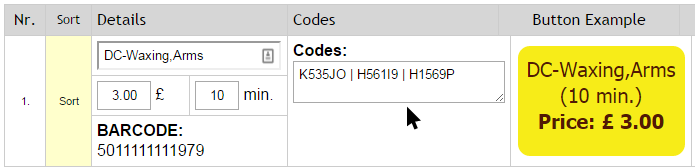
To delete an entry, press the “Delete” button of the entry.

 

© 2017 ClinicSoftware.com