
• Home

ClinicSoftware.com Knowledge Base ClinicSoftware.com Knowledge Base

ClinicSoftware.com Knowledge Base

  • HOW IT WORKS
    • Software Features
    • Marketing Features
    • Online Booking
    • Paperless Features
    • Photo And Draw Features
    • Tracking Features
    • Sell Cycle Features
    • Fully Responsive Features
    • Business Reports Features
    • Automated Features
    • Reminders Features
    • Apps Features
    • Multi Location Features
    • Add-Ons
  • WHO IT’S FOR
  • MARKETING
  • MORE
    • Support
    • Find-Us
    • Migrate To ClinicSoftware
    • How We Provide Training
    • Partner With Us
    • Academy
    • Support Chat
    • Blog
    • Editions
    • ClinicSoftware.com TV
    • GDPR
    • ICD-10 Database
    • PCI-DSS Compliant
    • Cloud Hosting
    • Latest UK Shows
    • UK Press
  • Modern Edition
  • CLOSE / RETURN TO SOFTWARE
Home Knowledge Base 8. LEADS 3. CONVERTING A LEAD

3. CONVERTING A LEAD

20th June 2019 Posted in: 8. LEADS Hits: 286

To convert a lead, click on the entry from the table to open the details window then select “CONVERT”.

Once converted you can access the client profile to send emails and texts or to book an appointment.

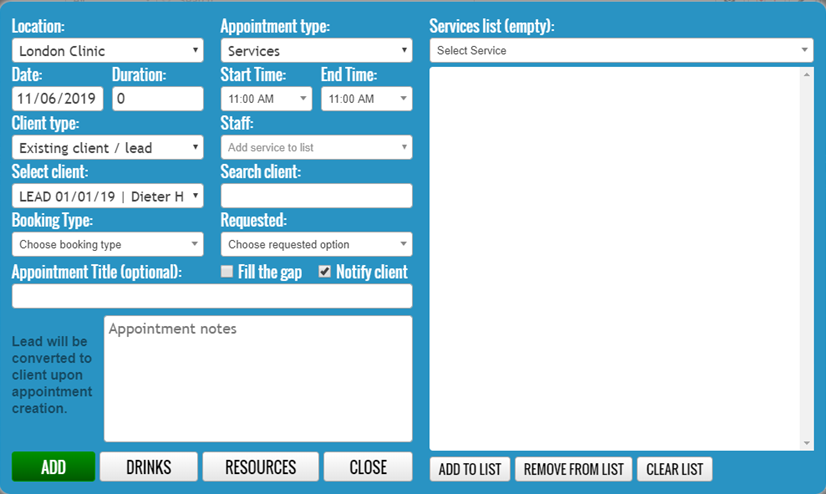
The system will also automatically convert a Lead when we book the first appointment.
From the Day Book, when you book a new appointment and use the Search Client box the system will search both clients and leads.
If a lead is selected, the system will display the message “Lead will be converted to client upon appointment creation.”
© 2017 ClinicSoftware.com