
• Home

ClinicSoftware.com Knowledge Base ClinicSoftware.com Knowledge Base

ClinicSoftware.com Knowledge Base

  • HOW IT WORKS
    • Software Features
    • Marketing Features
    • Online Booking
    • Paperless Features
    • Photo And Draw Features
    • Tracking Features
    • Sell Cycle Features
    • Fully Responsive Features
    • Business Reports Features
    • Automated Features
    • Reminders Features
    • Apps Features
    • Multi Location Features
    • Add-Ons
  • WHO IT’S FOR
  • MARKETING
  • MORE
    • Support
    • Find-Us
    • Migrate To ClinicSoftware
    • How We Provide Training
    • Partner With Us
    • Academy
    • Support Chat
    • Blog
    • Editions
    • ClinicSoftware.com TV
    • GDPR
    • ICD-10 Database
    • PCI-DSS Compliant
    • Cloud Hosting
    • Latest UK Shows
    • UK Press
  • Modern Edition
  • CLOSE / RETURN TO SOFTWARE
Home Knowledge Base 9.1 TASKS 03. COMPLETING, DELETING OR EDITING TASKS

03. COMPLETING, DELETING OR EDITING TASKS

13th August 2019 Posted in: 9.1 TASKS Hits: 268

Whenever a task has been completed, you can mark it as complete and that task will not longer show under “Open” tasks, instead it will be moved under “Completed” tasks to indicate that the task has been completed.


In order to mark a task as complete, the first thing that you need to do is to access the “Tasks” feature by clicking on this button:


After clicking on the “Tasks” button you should see a menu with all the open tasks such as this one:
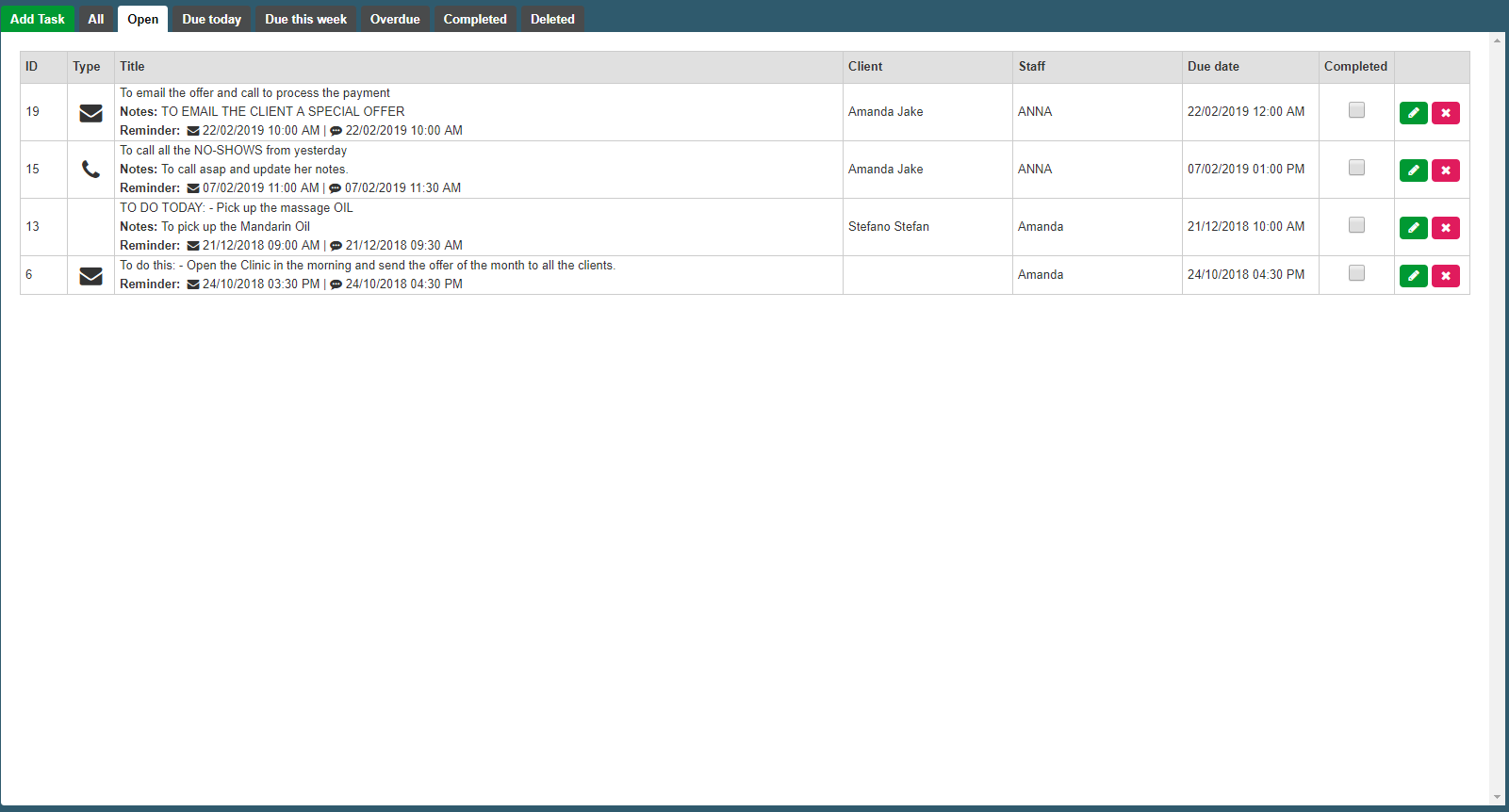
 

In order to mark a task as completed you simply click on the checkbox that can be found under the completed column :
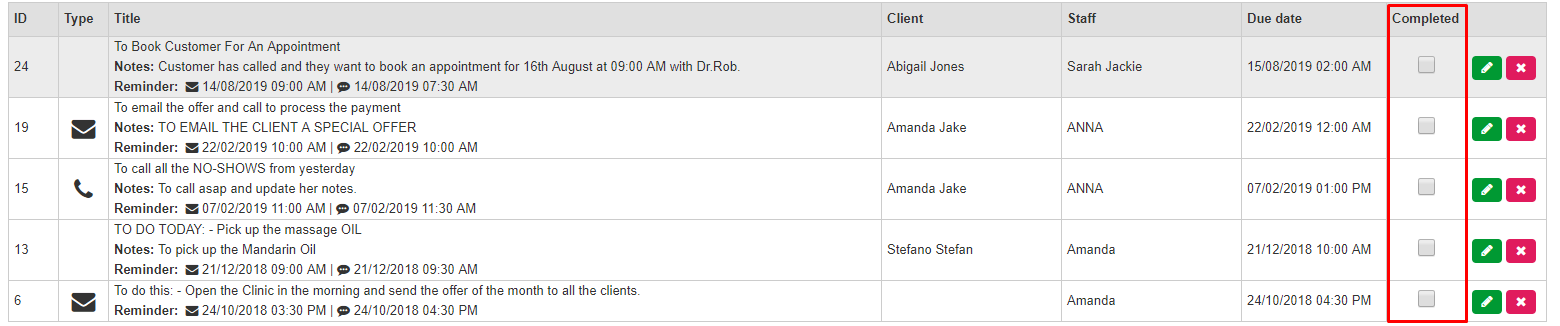
Once you mark the tasks as complete, then it will automatically be moved to tasks that have been completed.


you can also delete tasks by simply pressing on red button that can be found here:

 

Finally, you can also edit existing tasks by pressing on the green button which shows a pencil:

 

By clicking on that button you will be able to edit existing tasks.


© 2017 ClinicSoftware.com