
From this page you can manage the products.
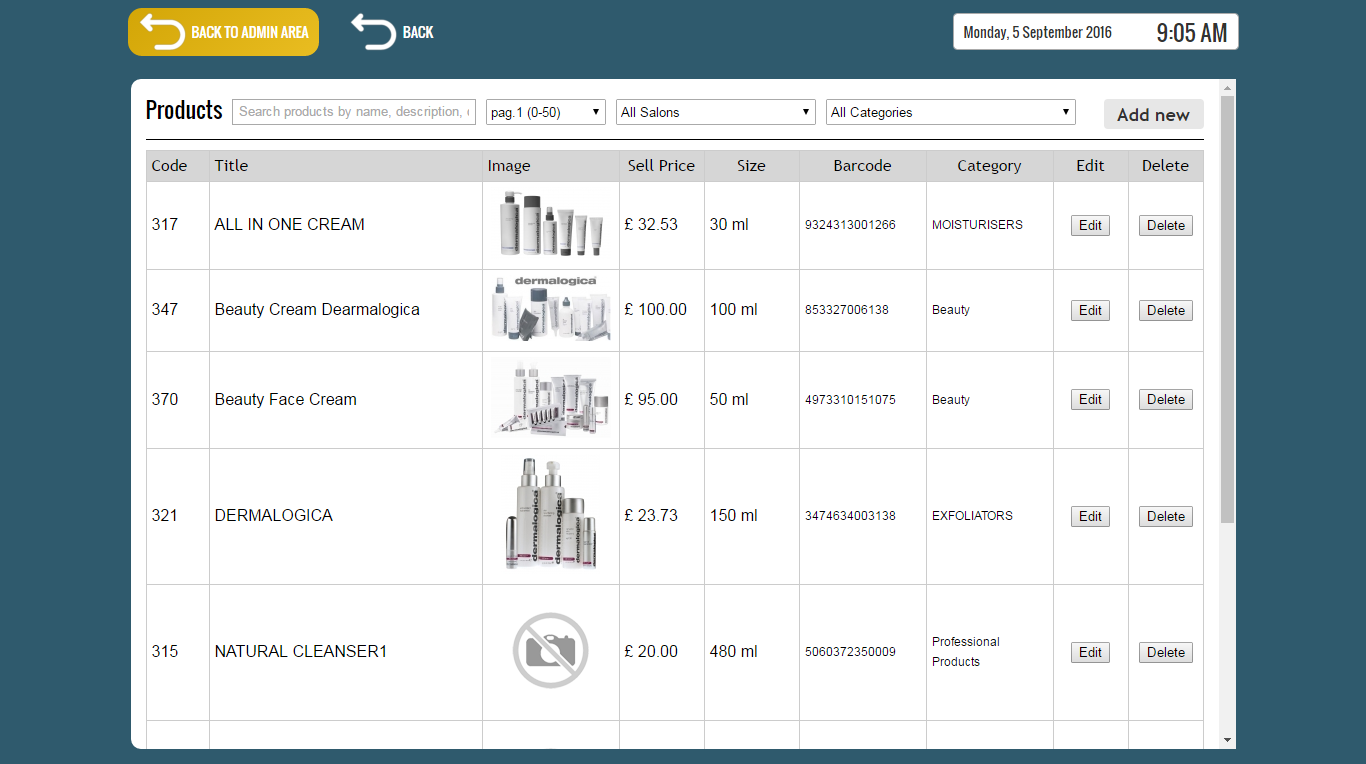
To filter the products list, use the search field, location and category drop boxes.
You can search by name, description, code (ID) and barcode.
Press the enter key after entering the search term.

To filter the list by location and category use the drop boxes from the top right section.
When you select a location the list will also include the products marked available for all locations.

This list is also paginated with 50 entries per page, to change the page use the pagination drop box from the top section.

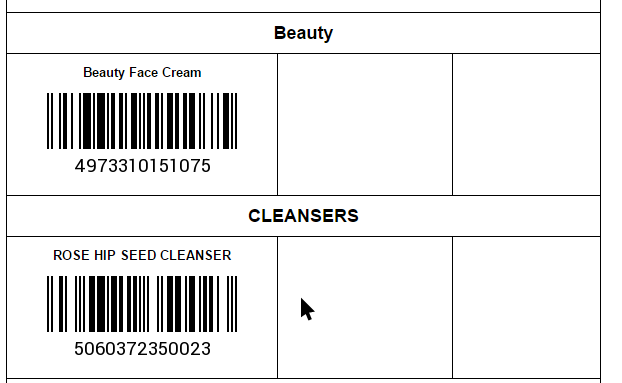
To print the product barcodes, press the “Print Barcodes” button from the bottom right section of the page.
To add a new product, press the “Add new” button from the top right section.

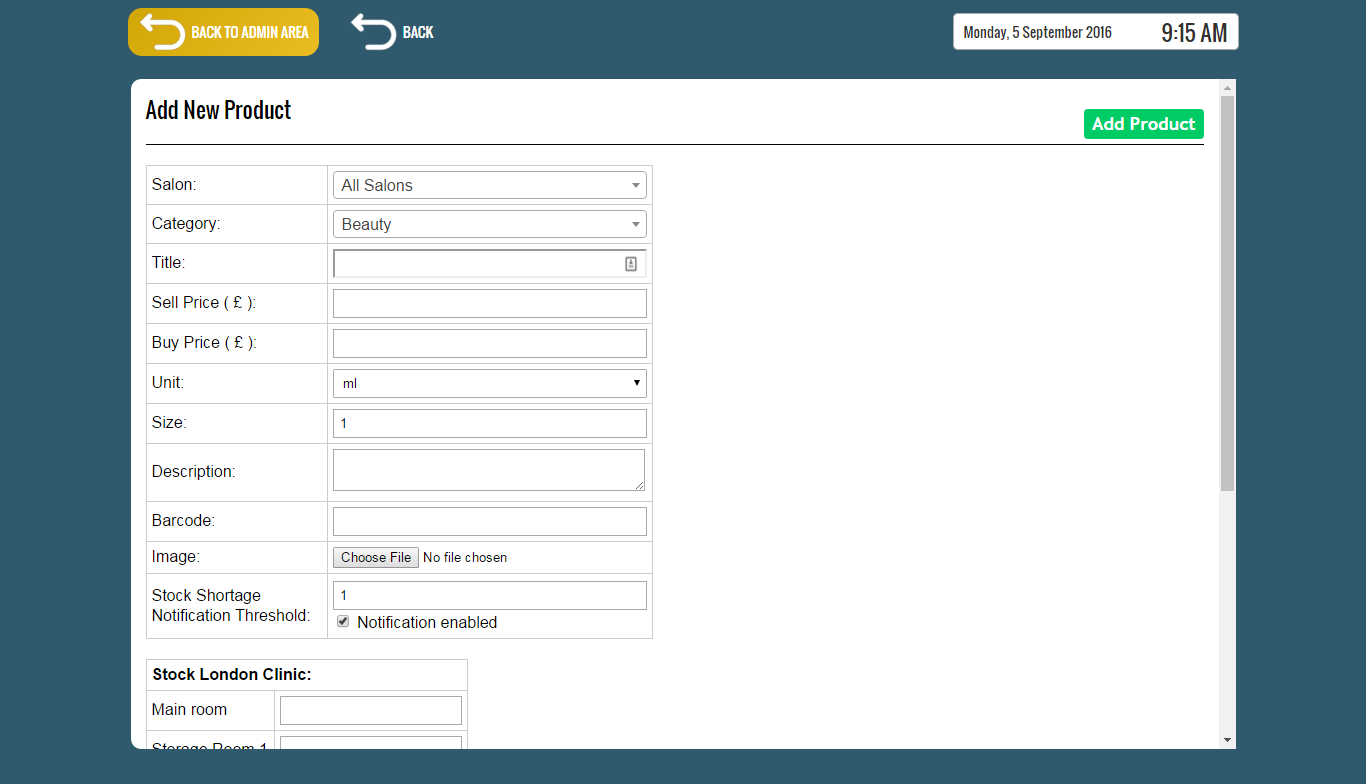
From the “Salon” drop box we can specify in which location the product will be available.
You can choose to have the product available for one or all locations.
The “Sell Price” is the field used when ordering the product.
The “Buy Price” is used only in reports. (E.g. the “Product Sales By Category Report” to calculate the profit).
From the “Unit” field we select the unit type (unit, ml, mg etc.).
The units are configured from the Admin Area / “SI UNIT (UNIT TYPE)” page.
The Size field represents the unit size (E.g. 50 ml).
From the “Image” field you can upload the product image that is displayed in the main products page.
From the “Stock Shortage Notification Threshold” you can specify the minimum stock value for the system to send out a stock shortage notification for the selected product.
Below the main product fields there are fields from which you can specify the stock value for each storage room in all locations in the system.
The storage rooms are configured from the Admin Area / “STORAGE ROOMS” page.
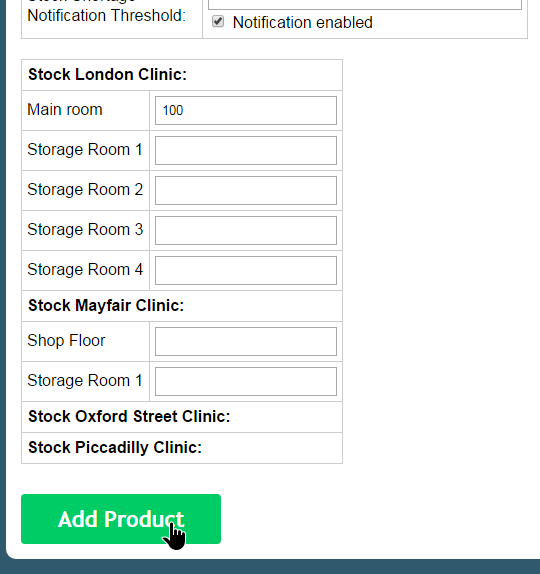
Complete the addition of the product by pressing one of the “Add Product” buttons from the top or bottom section of the page (scroll down).
To edit or delete a product, from the products list page use the “Edit” and “Delete” buttons of the product.