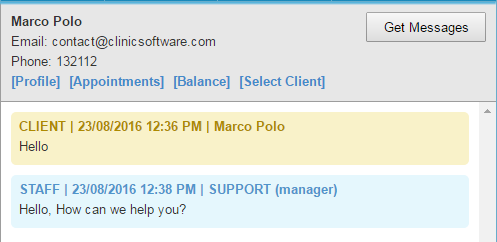
From this page you can send and receive messages to clients in the online booking application.
You can access the messaging page from the envelope icon located on the left side of the top menu.

If you have unread messages, the icon will be displayed in red colour along with the number of unread messages.

After you enter the messaging page you will see each client along with the number of unread messages.
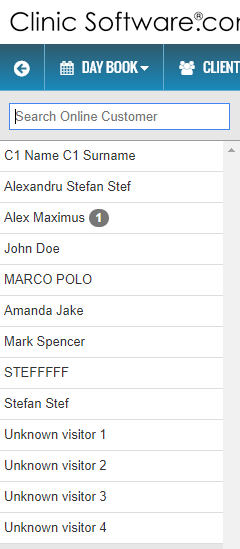
To view the conversation with a client, select the client from the left panel.
You can also type the client name inside the search box; the system will list all clients that have an online account (created through the online booking application).
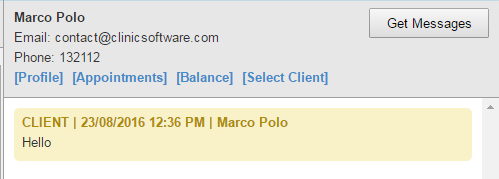
You can also see the client’s detail and access their profile, appointments and balance from here.
Or you can select the client to issue a receipt.
New messages are displayed with a yellow background, after they have been viewed the next time you access the conversation they will be displayed with a blue background.
To respond to the client message click on the client, then type the message in the message field and press the “Send” button.
Messages are loaded by default on a 10 second interval, if you wish to check the messages earlier press the “Get Messages” button.
To respond, enter your message in the field on the bottom of the panel and press the “Send” button.

After you press the “Send” button the message will appear inside the chat and on the client’s online booking profile.