
• Home

ClinicSoftware.com Knowledge Base ClinicSoftware.com Knowledge Base

ClinicSoftware.com Knowledge Base

  • HOW IT WORKS
    • Software Features
    • Marketing Features
    • Online Booking
    • Paperless Features
    • Photo And Draw Features
    • Tracking Features
    • Sell Cycle Features
    • Fully Responsive Features
    • Business Reports Features
    • Automated Features
    • Reminders Features
    • Apps Features
    • Multi Location Features
    • Add-Ons
  • WHO IT’S FOR
  • MARKETING
  • MORE
    • Support
    • Find-Us
    • Migrate To ClinicSoftware
    • How We Provide Training
    • Partner With Us
    • Academy
    • Support Chat
    • Blog
    • Editions
    • ClinicSoftware.com TV
    • GDPR
    • ICD-10 Database
    • PCI-DSS Compliant
    • Cloud Hosting
    • Latest UK Shows
    • UK Press
  • Modern Edition
  • CLOSE / RETURN TO SOFTWARE
Home Knowledge Base 6. REJUVENATION 01. CLIENT REJUVENATION PROCEDURES

01. CLIENT REJUVENATION PROCEDURES

27th January 2017 Posted in: 6. REJUVENATION Hits: 445


The rejuvenation feature allows you to keep a record of the face and body procedures (e.g. botulinum toxin and dermal fillers) and keep track of treatment progress with before and after pictures.

The client rejuvenation procedures can be accessed by pressing the “Rejuvenation” button from the main software client list page and then scanning the QR code with your tablet.
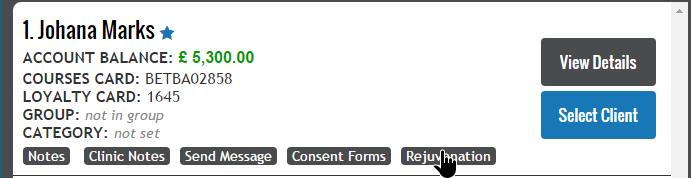
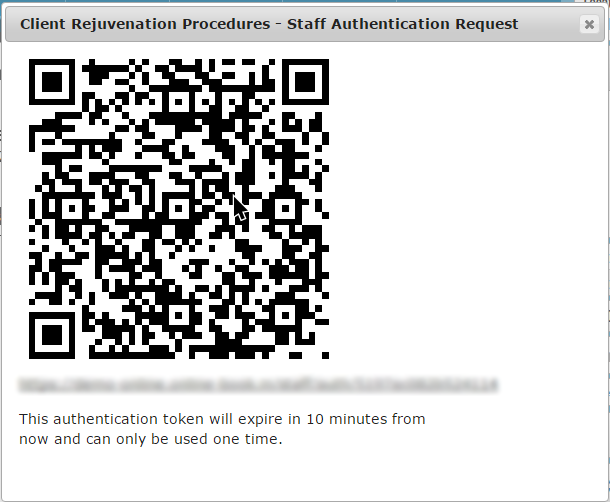
 

After scanning the QR code the system automatically logs you in as staff, selects the client and opens the client’s rejuvenation procedures list.
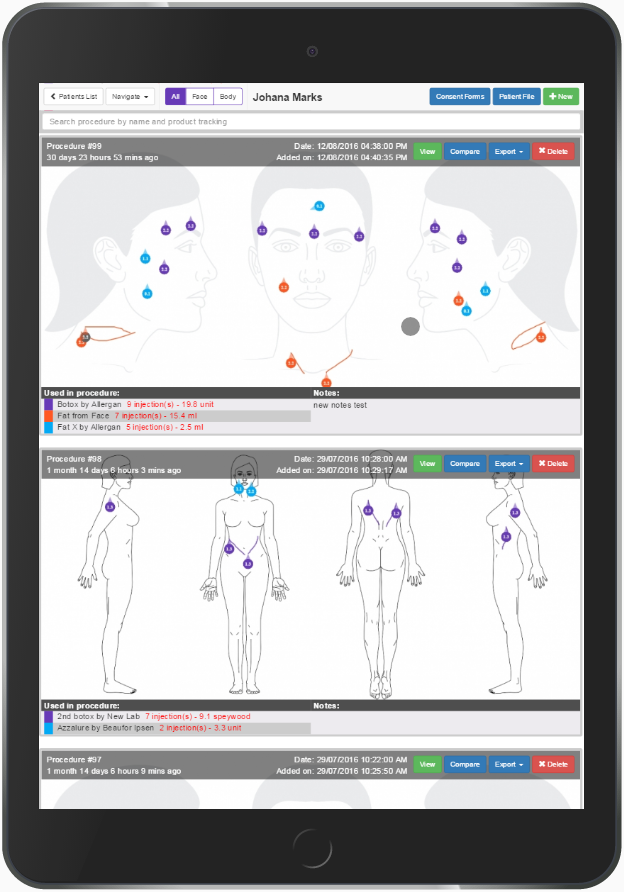
 

To go back and select a different patient, press the “< Patients List” button.

 

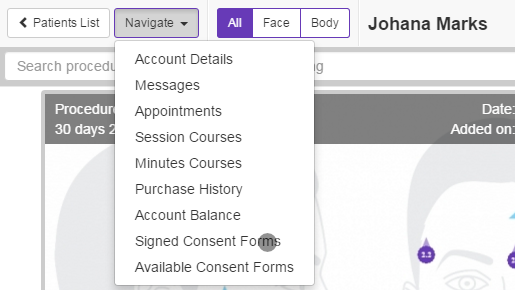
To access the client profile, use the “Navigate” button to select the page from the menu.
 

To display only the face or body type procedures, select the procedure type from the top-left button group.

 

To sign a new consent from for the selected client, press the “Consent Forms” button from the top right section of the page.

 

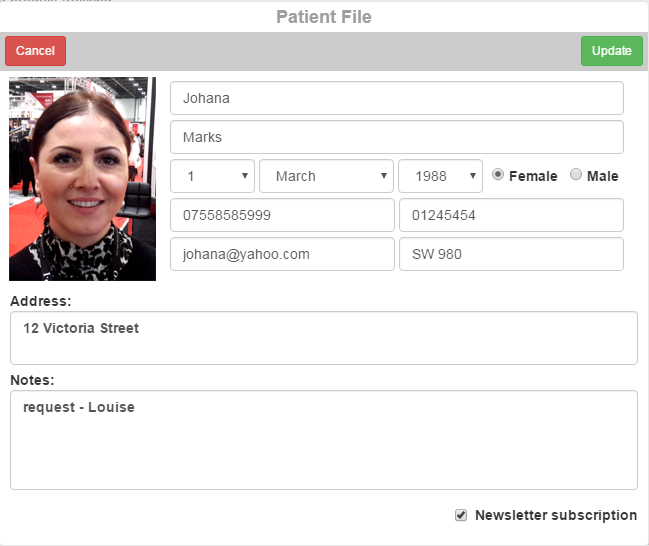
To view and edit the selected client details, press the “Patient File” button from the top right section of the page.



© 2017 ClinicSoftware.com