
In order to create a client’s list, click on the blue button labelled “Marketing”:

From there select “Marketing Lists”:

You will be taken to this page where you will be able to see all the existing Marketing Lists:

In order to add a new marketing list, click on the green button labelled “Add New”:

Once you have pressed that button you should be taken to this page where you will be able to enter your name of the Marketing List:
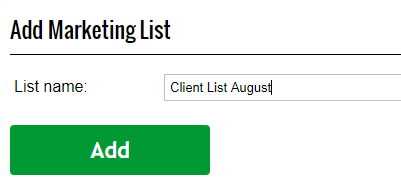
Once you have named your list, press “Add”. You will be taken back to the page where you will be able to see your existing client’s list as well as the new one which you have created. Press on the grey button labelled “Clients”:

You will be taken to this page:

Press on the green button labelled “Add Clients”:

You will be taken to this page where you will be able to add your clients to the list. You can scroll through the list or you can also use the search bar at the top in order to search for clients:
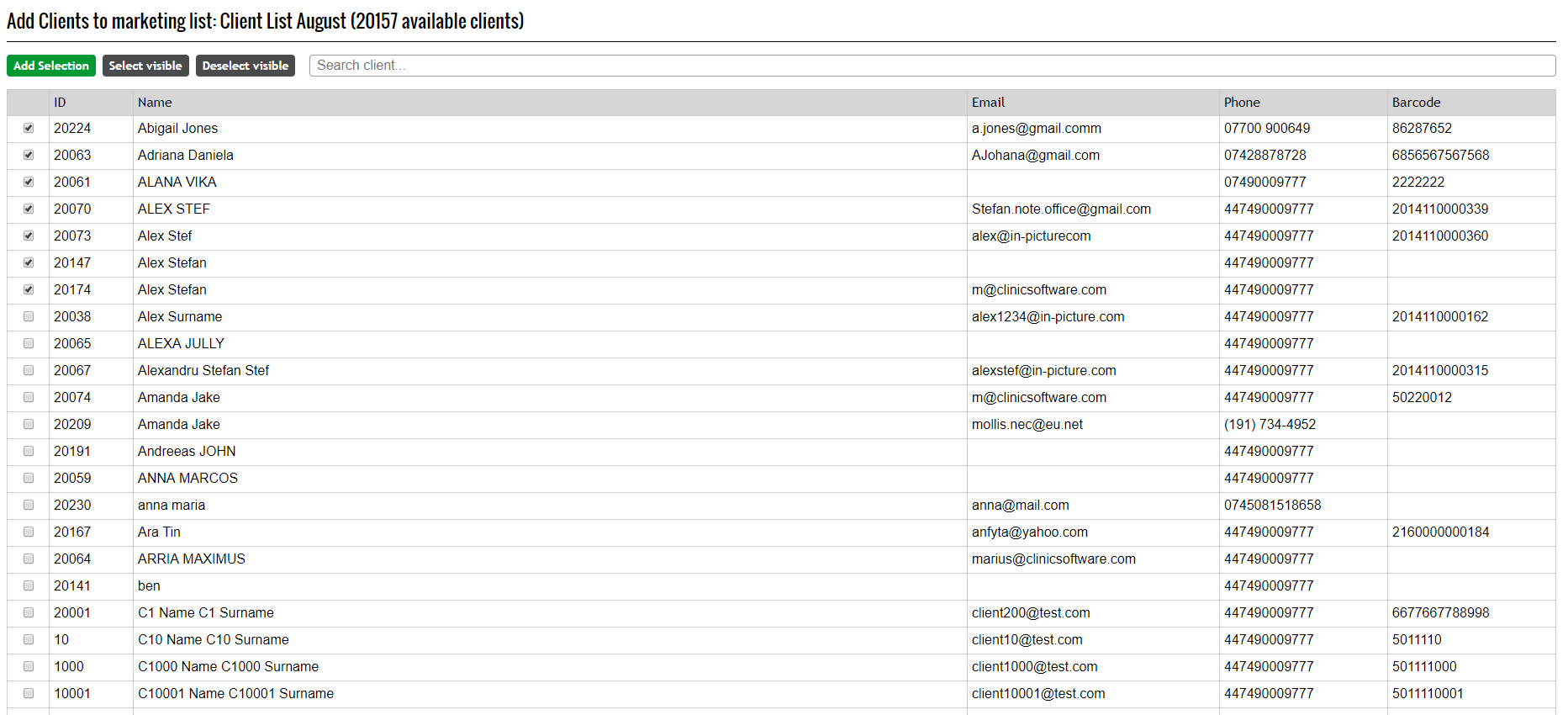
Once you have selected the clients by ticking the check box next to their name, press the green button labelled “Add Selection” in order to add your client’s to the list. Your clients have now been added to the list.